Skip to content

Blog

Anatomy of Linux system call in ARM64

The purpose of an Operating System is to run user applications. But the OS cannot provide user applications full control due to security reasons. So to do some privileged operations applications should ask OS to do the job on behalf of themselves. The primary interaction mechanism in Linux and similar Operating Systems is System Call. In this article we are going to see the anatomy of Linux System Calls in ARM64 architecture. Most people working with applications doesn't require it. It is only for those who have a printed copy of Hitchhiker's guide to the galaxy. DON'T PANIC!

ARMv8 has four exception levels - EL0 to EL3. EL0 has lowest privilege where user applications run. EL3 has the highest privilege for Secure Monitor firmware (usually proprietary). Hypervisor runs in EL2 for virtualisation platforms. And our beloved Linux kernel runs in EL1. Elevation from one exception level to next exception level are achieved by setting exceptions. These exceptions will be set by one level and the next level will handle it. Explaining all types of exceptions is out of the scope of this article.

The instruction used to set a synchronous exception [used for system call mechanism] to elevate from EL0 to EL1 is svc - supervisor call. Thus an application runs in Linux should issue svc with registers set with appropriate values. To know what are those appropriate values, Lets see how kernel handles svc.

Kernel Part

NOTE: All the code references given in this post are from Linux-4.9.57.

Vector table definition in Kernel

As I have mentioned already, there are multiple exceptions can be set by applications [EL0] which will be taken by Kernel [EL1]. The handlers for these exceptions are stored in a vector table. In ARMv8 the register that mentions the base address of that vector table is VBAR_EL1 [Vector Base Address Register for EL1].

{% blockquote ARM infocenter %} When an exception occurs, the processor must execute handler code which corresponds to the exception. The location in memory where the handler is stored is called the exception vector. In the ARM architecture, exception vectors are stored in a table, called the exception vector table. Each Exception level has its own vector table, that is, there is one for each of EL3, EL2 and EL1. The table contains instructions to be executed, rather than a set of addresses. Vectors for individual exceptions are located at fixed offsets from the beginning of the table. The virtual address of each table base is set by the Vector Based Address Registers VBAR_EL3, VBAR_EL2 and VBAR_EL1.

As explained above the exception-handlers reside in a continuous memory and each vector spans up to 32 instructions long. Based on type of the exception, the execution will start from an instruction in a particular offset from the base address VBAR_EL1. Below is the ARM64 vector table. For example when an synchronous exception is set from EL0 is set, the handler at VBAR_EL1 +0x400 will execute to handle the exception.

Offset from VBAR_EL1 Exception type Exception set level
+0x000 Synchronous Current EL with SP0
+0x080 IRQ/vIRQ "
+0x100 FIQ/vFIQ "
+0x180 SError/vSError "
+0x200 Synchronous Current EL with SPx
+0x280 IRQ/vIRQ "
+0x300 FIQ/vFIQ "
+0x380 SError/vSError "
+0x400 Synchronous Lower EL using ARM64
+0x480 IRQ/vIRQ "
+0x500 FIQ/vFIQ "
+0x580 SError/vSError "
+0x600 Synchronous Lower EL with ARM32
+0x680 IRQ/vIRQ "
+0x700 FIQ/vFIQ "
+0x780 SError/vSError "

Linux defines the vector table at arch/arm64/kernel/entry.S +259. Each ventry is 32 instructions long. As an instruction in ARMv8 is 4 bytes long, next ventry will start at +0x80 of current ventry.

ENTRY(vectors)
    ventry    el1_sync_invalid           // Synchronous EL1t
    ventry    el1_irq_invalid            // IRQ EL1t
    ventry    el1_fiq_invalid            // FIQ EL1t
    ventry    el1_error_invalid          // Error EL1t

    ventry    el1_sync                   // Synchronous EL1h
    ventry    el1_irq                    // IRQ EL1h
    ventry    el1_fiq_invalid            // FIQ EL1h
    ventry    el1_error_invalid          // Error EL1h

    ventry    el0_sync                   // Synchronous 64-bit EL0
    ventry    el0_irq                    // IRQ 64-bit EL0
    ventry    el0_fiq_invalid            // FIQ 64-bit EL0
    ventry    el0_error_invalid          // Error 64-bit EL0

#ifdef CONFIG_COMPAT
    ventry    el0_sync_compat            // Synchronous 32-bit EL0
    ventry    el0_irq_compat             // IRQ 32-bit EL0
    ventry    el0_fiq_invalid_compat     // FIQ 32-bit EL0
    ventry    el0_error_invalid_compat   // Error 32-bit EL0
#else
    ventry    el0_sync_invalid           // Synchronous 32-bit EL0
    ventry    el0_irq_invalid            // IRQ 32-bit EL0
    ventry    el0_fiq_invalid            // FIQ 32-bit EL0
    ventry    el0_error_invalid          // Error 32-bit EL0
#endif
END(vectors)
And loads the vector table into VBAR_EL1 at arch/arm64/kernel/head.S +433.
    adr_l   x8, vectors                 // load VBAR_EL1 with virtual
    msr     vbar_el1, x8                // vector table address
    isb
VBAR_EL1 is an system register. So it cannot be accessed directly. Special system instructions msr and mrs should be used manipulate system registers.

Instruction Description
adr_l x8, vector loads the address of vector table into general purpose register X8
msr vbar_el1, x8 moves value in X8 to system register VBAR_EL1
isb instruction sync barrier

System call flow in Kernel

Now lets see what happens when an application issues the instruction svc. From the table, we can see for AArch64 synchronous exception from lower level, the offset is +0x400. In the Linux vector definition VBAR_EL1+0x400 is el0_sync. Lets go to the el0_sync definition at arch/arm64/kernel/entry.S +458

el0_sync:
    kernel_entry 0
    mrs    x25, esr_el1                     // read the syndrome register
    lsr    x24, x25, #ESR_ELx_EC_SHIFT      // exception class
    cmp    x24, #ESR_ELx_EC_SVC64           // SVC in 64-bit state
    b.eq    el0_svc
    cmp    x24, #ESR_ELx_EC_DABT_LOW        // data abort in EL0
    b.eq    el0_da
    cmp    x24, #ESR_ELx_EC_IABT_LOW        // instruction abort in EL0
    b.eq    el0_ia
    cmp    x24, #ESR_ELx_EC_FP_ASIMD        // FP/ASIMD access
    b.eq    el0_fpsimd_acc
    cmp    x24, #ESR_ELx_EC_FP_EXC64        // FP/ASIMD exception
    b.eq    el0_fpsimd_exc
    cmp    x24, #ESR_ELx_EC_SYS64           // configurable trap
    b.eq    el0_sys
    cmp    x24, #ESR_ELx_EC_SP_ALIGN        // stack alignment exception
    b.eq    el0_sp_pc
    cmp    x24, #ESR_ELx_EC_PC_ALIGN        // pc alignment exception
    b.eq    el0_sp_pc
    cmp    x24, #ESR_ELx_EC_UNKNOWN         // unknown exception in EL0
    b.eq    el0_undef
    cmp    x24, #ESR_ELx_EC_BREAKPT_LOW     // debug exception in EL0
    b.ge    el0_dbg
    b    el0_inv
The subroutine is nothing but a bunch of if conditions. The synchronous exception can have multiple reasons which will be stored in the syndrome register esr_el1. Compare the value in syndrome register with predefined macros and branch to the corresponding subroutine.

Instruction Description
kernel_entry 0 It is a macro defined at
arch/arm64/kernel/entry.S +71. It stores
all the general purpose registers into
CPU stack as the sys_* function
expects its arguments from
CPU stack only
mrs x25, esr_el1 Move system register esr_el1 to general
purpose register X25. esr_el1 is the exception
syndrome register. It will have the syndrome code
that caused the exception.
lsr x24, x25, #ESR_ELx_EC_SHIFT Left shift X25 by ESR_ELx_EC_SHIFT bits
and store the result in X24
cmp x24, #ESR_ELx_EC_SVC64 Compare the value in X24 with ESR_ELx_EC_SVC64.
If both are equal Z bit will be set in NZCV
special purpose register.
b.eq el0_svc If Z flag is set in NZCV, branch to el0_svc.
It is just b not bl. So the control will not come
back to caller. The condition check will happen until
it finds the appropriate reason. If all are wrong el0_inv
will be called.

In a system call case, control will be branched to el0_svc. It is defined at arm64/kernel/entry.S +742 as follows

/*
 * SVC handler.
 */
    .align    6
el0_svc:
    adrp    stbl, sys_call_table            // load syscall table pointer
    uxtw    scno, w8                        // syscall number in w8
    mov     sc_nr, #__NR_syscalls
el0_svc_naked:                              // compat entry point
    stp     x0, scno, [sp, #S_ORIG_X0]      // save the original x0 and syscall number    enable_dbg_and_irq
    ct_user_exit 1

    ldr     x16, [tsk, #TI_FLAGS]           // check for syscall hooks
    tst     x16, #_TIF_SYSCALL_WORK
    b.ne    __sys_trace
    cmp     scno, sc_nr                     // check upper syscall limit
    b.hs    ni_sys
    ldr     x16, [stbl, scno, lsl #3]       // address in the syscall table
    blr     x16                             // call sys_* routine
    b       ret_fast_syscall
ni_sys:
    mov     x0, sp
    bl      do_ni_syscall
    b       ret_fast_syscall
ENDPROC(el0_svc)
Before going through the code, let me introduce the aliases arch/arm64/kernel/entry.S +229
/*
 * These are the registers used in the syscall handler, and allow us to
 * have in theory up to 7 arguments to a function - x0 to x6.
 *
 * x7 is reserved for the system call number in 32-bit mode.
 */
sc_nr   .req    x25        // number of system calls
scno    .req    x26        // syscall number
stbl    .req    x27        // syscall table pointer
tsk     .req    x28        // current thread_info
Now lets walk through function el0_svc,

Instruction Description
adrp stbl, sys_call_table I'll come to the sys_call_table in next section.
It is the table indexed with syscall number and
corresponding function. It has to be in a
4K aligned memory. Thus this instruction adds the top
22-bits of sys_call_table address with top 52-bit of
PC (program counter) and stores the value at stbl.
Actually it forms the PC-relative address to 4KB page.
uxtw scno, w8 unsigned extract from 32-bit word.
Read 32-bit form of General purpose register X8
and store it in scno
mov sc_nr, #__NR_syscalls Load sc_nr with number of system calls
stp x0, scno, [sp, #S_ORIG_X0] Store a pair of registers X0 and scno
at the memory location stack-pointer + S_ORIG_X0.
Value of S_ORIG_X0 is not really important.
As long as stack-pointer is not modified,
we can access the stored values anytime.
enable_dbg_and_irq it is a macro defined at
arch/arm64/include/asm/assembler.h +88.
It actually enables IRQ and
debugging by setting appropriate
value at special purpose register DAIF.
ct_user_exit 1 another macro not much important
unless you bother about CONFIG_CONTEXT_TRACKING
ldr x16, [tsk, #TI_FLAGS]
tst x16, #_TIF_SYSCALL_WORK
b.ne __sys_trace
These instructions are related to syscall hooks.
If syscall hooks are set, call __sys_trace.
For those who got confused about b.ne like me,
.ne only check whether Z flag is non zero.
tst instruction does an bitwise AND of both
operands. If both are equal, Z flag will be non zero.
cmp scno, sc_nr
b.hs ni_sys
Just an error check. If the
syscall number is greater than
sc_nr go to ni_sys
ldr x16, [stbl, scno, lsl #3] Load the address of corresponding
sys_* function into X16.
Will explain detail in next section
blr x16 subroutine call to the actual sys_*
function
b ret_fast_syscall Maybe a house-keeping function.
Control will not flow further down.

sys_call_table

It is nothing but an array of function pointer indexed with the system call number. It has to be placed in an 4K aligned memory. For ARM64 sys_call_table is defined at arch/arm64/kernel/sys.c +55.

#undef __SYSCALL
#define __SYSCALL(nr, sym)  [nr] = sym,

/*
 * The sys_call_table array must be 4K aligned to be accessible from
 * kernel/entry.S.
 */
void * const sys_call_table[__NR_syscalls] __aligned(4096) = {
    [0 ... __NR_syscalls - 1] = sys_ni_syscall,
#include <asm/unistd.h>
};
* __NR_syscalls defines the number of system call. This varies from architecture to architecture. * Initially all the system call numbers were set sys_ni_syscall - not implemented system call. If a system call is removed, its system call number will not be reused. Instead it will be assigned with sys_ni_syscall function. * And the include goes like this arch/arm64/include/asm/unistd.h -> arch/arm64/include/uapi/asm/unistd.h -> include/asm-generic/unistd.h -> include/uapi/asm-generic/unistd.h. The last file has the definition of all system calls. For example the write system call is defined here as
#define __NR_write 64
__SYSCALL(__NR_write, sys_write)
* The sys_call_table is an array of function pointers. As in ARM64 a function pointer is 8 bytes long, to calculate the address of actual system call, system call number scno is left shifted by 3 and added with system call table address stbl in the el0_svc subroutine - ldr x16, [stbl, scno, lsl #3]

System call definition

Each system call is defined with a macro SYSCALL_DEFINEn macro. n is corresponding to the number of arguments the system call accepts. For example the write is implemented at fs/read_write.c +599

SYSCALL_DEFINE3(write, unsigned int, fd, const char __user *, buf,
        size_t, count)
{
    struct fd f = fdget_pos(fd);
    ssize_t ret = -EBADF;

    if (f.file) {
        loff_t pos = file_pos_read(f.file);
        ret = vfs_write(f.file, buf, count, &pos);
        if (ret >= 0)
            file_pos_write(f.file, pos);
        fdput_pos(f);
    }

    return ret;
}
This macro will expand into sys_write function definition and other aliases functions as mentioned in this LWN article. The expanded function will have the compiler directive asmlinkage set. It instructs the compiler to look for arguments in CPU stack instead of registers. This is to implement system calls architecture independent. That's why kernel_entry macro in el0_sync pushed all general purpose registers into stack. In ARM64 case registers X0 to X7 will have the arguments.

Application part

An user application should do following steps to make a system call * Set the lower 32-bit of general purpose register X8 with appropriate system call number - el0_svc loads the system call number from W0 * And then issue the svc instruction * Now kernel implemented sys_* function will run on behalf of the application

Normally all the heavy lifting will be done by the glibc library. Dependency on glibc also makes the application portable across platforms having glibc support. Each platform will have different system call number and glibc takes care of that while compiling.

printf implementation

In this section we'll see how glibc implements the printf system call. Going deep into all glibc macro expansion is out of scope of this post. End of the day printf has to be a write towards the stdout file. Lets see that.

Wrote a simple hello world program.

kaba@kaba-Vostro-1550:~/Desktop/workbench/code
$ cat syscall.c
#include <stdio.h>

int main()
{
    printf("Hello world!\n");
    return 0;
}
kaba@kaba-Vostro-1550:~/Desktop/workbench/code
$ 
Compile it with symbols and export it to an ARM64 target [Raspberry Pi 3 in my case]. Run it in the target with gdbserver and connect remote GDB as mentioned in previous post.

The last function in glibc that issues svc is __GI___libc_write. I got this with the help of GDB. If you really want to go through glibc code to trace this function all the way from printf, prepare yourself. Here is the GDB backtrace output.

(gdb) bt
#0  __GI___libc_write (fd=1, buf=0x412260, nbytes=13) at /usr/src/debug/glibc/2.26-r0/git/sysdeps/unix/sysv/linux/write.c:26
#1  0x0000007fb7eeddcc in _IO_new_file_write (f=0x7fb7fcd540 <_IO_2_1_stdout_>, data=0x412260, n=13) at /usr/src/debug/glibc/2.26-r0/git/libio/fileops.c:1255
#2  0x0000007fb7eed160 in new_do_write (fp=0x7fb7fcd540 <_IO_2_1_stdout_>, data=0x412260 "Hello world!\n", to_do=to_do@entry=13) at /usr/src/debug/glibc/2.26-r0/git/libio/fileops.c:510
#3  0x0000007fb7eeefc4 in _IO_new_do_write (fp=fp@entry=0x7fb7fcd540 <_IO_2_1_stdout_>, data=<optimized out>, to_do=13) at /usr/src/debug/glibc/2.26-r0/git/libio/fileops.c:486
#4  0x0000007fb7eef3f0 in _IO_new_file_overflow (f=0x7fb7fcd540 <_IO_2_1_stdout_>, ch=10) at /usr/src/debug/glibc/2.26-r0/git/libio/fileops.c:851
#5  0x0000007fb7ee3d78 in _IO_puts (str=0x400638 "Hello world!") at /usr/src/debug/glibc/2.26-r0/git/libio/ioputs.c:41
#6  0x0000000000400578 in main () at syscall.c:5
Lets us see the assembly instructions of __GI_libc_write function in GDB TUI.
   |0x7fb7f407a8 <__GI___libc_write>        stp    x29, x30, [sp, #-48]!
  >│0x7fb7f407ac <__GI___libc_write+4>      adrp   x3, 0x7fb7fd1000 <__libc_pthread_functions+184>
   │0x7fb7f407b0 <__GI___libc_write+8>      mov    x29, sp
   │0x7fb7f407b4 <__GI___libc_write+12>     str    x19, [sp, #16]
   │0x7fb7f407b8 <__GI___libc_write+16>     sxtw   x19, w0
   │0x7fb7f407bc <__GI___libc_write+20>     ldr    w0, [x3, #264]
   │0x7fb7f407c0 <__GI___libc_write+24>     cbnz   w0, 0x7fb7f407f0 <__GI___libc_write+72>
   │0x7fb7f407c4 <__GI___libc_write+28>     mov    x0, x19
   │0x7fb7f407c8 <__GI___libc_write+32>     mov    x8, #0x40                       // #64
   │0x7fb7f407cc <__GI___libc_write+36>     svc    #0x0
   .
   .
   .

Instruction Description
stp x29, x30, [sp, #-48]! Increment stack pointer and back-up
frame-pointer and link-register
adrp x3, 0x7fb7fd1000 Load the PC related address
of SINGLE_THREAD_P
mov x29, sp Move current stack-pointer
into frame-pointer
str x19, [sp, #16] Backup X19 in stack
sxtw x19, w0 Backup W0 into X19
the first parameter
This function has 3 parameters
So they will be in X0, X1
andX2. Thus they have to be
backed-up before using
ldr w0, [x3, #264] Load the global into W0
This global tells whether
it is a multi-threaded
program
cbnz w0, 0x7fb7f407f0 Conditional branch if W0
is non zero
Actually a jump in case of
multi-threaded program.
Our case is single threaded.
So fall through
mov x0, x19 Restore X19 into X0.
The first argument.
Here the fd
mov x8, #0x40 Load X8 with the value 0x40.
Kernel will look
for the system call number
at X8. So we load it with 64
which is the system call
number of write
svc #0x0 All set. Now
supervisor call

From this point the almighty Linux kernel takes control. Pretty long article ahh!. At last the improbable drive comes to equilibrium as you complete this.

References

  • http://infocenter.arm.com/help/index.jsp?topic=/com.arm.doc.den0024a/ch09s01s01.html
  • http://infocenter.arm.com/help/index.jsp?topic=/com.arm.doc.den0024a/CHDEEDDC.html
  • https://lwn.net/Articles/604287/
  • https://courses.cs.washington.edu/courses/cse469/18wi/Materials/arm64.pdf
  • http://www.osteras.info/personal/2013/10/11/hello-world-analysis.html
  • And the Linux kernel source. Thanks to https://elixir.bootlin.com
Debugging application with cross-GDB in Yocto environment

GDB is a very useful tool when debugging applications. Embedded devices lack sophisticated features that Development machines enjoy like better processor speed, huge RAM, etc. In such cases running GDB on the target will be painfully slow. But thanks to remote-debugging support from GDB which saves us from such situations. In this post we'll see how to do remote debugging of an application running on Raspberry Pi 3.

You can read previous posts to have better understanding about Yocto build environment and how to setup serial connection with Raspberry pi 3.

Target program and compilation

Going along with the world, we'll start with traditional Hello World program. Write the C program and cross-compile it to arm64 platform. Secure copy the executable binary to Raspberry Pi 3.

kaba@kaba-Vostro-1550:~/Desktop/workbench/code
$ cat syscall.c
#include <stdio.h>

int main()
{
    printf("Hello world!\n");
    return 0;
}
kaba@kaba-Vostro-1550:~/Desktop/workbench/code
$ source /opt/poky/2.4.2/environment-setup-aarch64-poky-linux 
kaba@kaba-Vostro-1550:~/Desktop/workbench/code
$ $CC -g syscall.c -o syscall.arm64.debug
kaba@kaba-Vostro-1550:~/Desktop/workbench/code
$ $CC syscall.c -o syscall.arm64
kaba@kaba-Vostro-1550:~/Desktop/workbench/code
$ ls
total 36K
-rwxr-xr-x 1 kaba kaba 14K Jun  3 12:07 syscall.arm64
-rwxr-xr-x 1 kaba kaba 16K Jun  3 12:07 syscall.arm64.debug
-rw-r--r-- 1 kaba kaba  73 May 31 06:48 syscall.c
kaba@kaba-Vostro-1550:~/Desktop/workbench/code
$ scp ./syscall.arm64 root@192.168.0.101:
syscall.arm64                                                                                                                                                             100%   13KB 488.8KB/s   00:00    

kaba@kaba-Vostro-1550:~/Desktop/workbench/code
$ 
We have two binaries compiled here. We have copied the one without symbols to target board. And the one with debug symbols will be passed as an argument cross-GDB.

Build GDB-server

Add gdbserver tool to the target image by enabling tools-debug in EXTRA_IMAGE_FEATURES. Run the Hello World program in target, attached with gdbserver that listens on network.

root@raspberrypi3-64:~# gdbserver 192.168.0.101:2345 ./syscall.arm64 
Process ./syscall.arm64 created; pid = 1671
Listening on port 2345
It will start the program and wait for remote-gdb to attach.

Build GDB with TUI support

GDB has a tui [Text User Interface] mode which will be very much useful while debugging. With tui enabled, we can see the code that runs, equivalent assembly instruction, current register values, etc., simultaneously. But by default the GDB in Yocto doesn't build with tui support. Append --enable-tui option to gdb-cross bbfile. And build the SDK as mentioned here.

kaba@kaba-Vostro-1550:~/Desktop/yocto/yocto
$ tree meta-kaba-hacks/
meta-kaba-hacks/
├── conf
│   └── layer.conf
├── COPYING.MIT
├── recipes-devtools
│   └── gdb
│       └── gdb-%.bbappend
└── recipes-kernel
    └── linux
        ├── linux-raspberrypi
           ├── debug.cfg
           └── enable_proc_zconfig.cfg
        └── linux-raspberrypi_4.9.bbappend

kaba@kaba-Vostro-1550:~/Desktop/yocto/yocto
$ cat meta-kaba-hacks/recipes-devtools/gdb/gdb-%.bbappend 
EXTRA_OECONF += " --enable-tui"
kaba@kaba-Vostro-1550:~/Desktop/yocto/yocto
$ bitbake core-image-base -c populate_sdk
kaba@kaba-Vostro-1550:~/Desktop/yocto/yocto
$ ./tmp/deploy/sdk/poky-glibc-x86_64-core-image-base-aarch64-toolchain-2.4.2.sh
kaba@kaba-Vostro-1550:~/Desktop/yocto/yocto
$ 

Launch

Run cross-GDB with tui enabled and connect it to the target.

kaba@kaba-Vostro-1550:~/Desktop/workbench/code
$ source /opt/poky/2.4.2/environment-setup-aarch64-poky-linux 
kaba@kaba-Vostro-1550:~/Desktop/workbench/code
$ $GDB -tui ./syscall.arm64.debug 
GDB window will open-up similar to the screenshot at the top of this post (zoom-in your web page to see the image details clearly). Below I'm copying only the command-panel of GDB. Based on the commands you run, the other panels will also get changed.

Connect to target program waiting for remote-GDB.

(gdb) target remote 192.168.0.101:2345
Remote debugging using 192.168.0.101:2345
Reading /lib/ld-linux-aarch64.so.1 from remote target...
warning: File transfers from remote targets can be slow. Use "set sysroot" to access files locally instead.
Reading /lib/ld-linux-aarch64.so.1 from remote target...
Reading symbols from target:/lib/ld-linux-aarch64.so.1...Reading /lib/ld-2.26.so from remote target...
Reading /lib/.debug/ld-2.26.so from remote target...
(no debugging symbols found)...done.
0x0000007fb7fd2f40 in ?? () from target:/lib/ld-linux-aarch64.so.1
(gdb) 

Now it connected to the target program. But it is not very much helpful. Because it tries to load the symbols and source from target board. The target has no source or symbol. Lets direct GDB to load source and symbol from host machine.

(gdb) set sysroot /opt/poky/2.4.2/sysroots/aarch64-poky-linux/
warning: .dynamic section for "/opt/poky/2.4.2/sysroots/aarch64-poky-linux/lib/ld-linux-aarch64.so.1" is not at the expected address (wrong library or version mismatch?)
Reading symbols from /opt/poky/2.4.2/sysroots/aarch64-poky-linux/lib/ld-linux-aarch64.so.1...Reading symbols from /opt/poky/2.4.2/sysroots/aarch64-poky-linux/lib/.debug/ld-2.26.so...done.
done.
Reading symbols from /opt/poky/2.4.2/sysroots/aarch64-poky-linux/lib/ld-linux-aarch64.so.1...Reading symbols from /opt/poky/2.4.2/sysroots/aarch64-poky-linux/lib/.debug/ld-2.26.so...done.
done.
(gdb) info sharedlibrary  
From                To                  Syms Read   Shared Object Library
0x0000007fb7fd2dc0  0x0000007fb7fe9fc8  Yes         /opt/poky/2.4.2/sysroots/aarch64-poky-linux/lib/ld-linux-aarch64.so.1
(gdb)
Set a break-point in main and continue. So the program will pause once it reaches main. Now if you see, there will be another shared library loaded.
(gdb) break main
Breakpoint 1 at 0x40056c: file syscall.c, line 5.
(gdb) c
Continuing.

Breakpoint 1, main () at syscall.c:5
(gdb) info sharedlibrary
From                To                  Syms Read   Shared Object Library
0x0000007fb7fd2dc0  0x0000007fb7fe9fc8  Yes         /opt/poky/2.4.2/sysroots/aarch64-poky-linux/lib/ld-linux-aarch64.so.1
0x0000007fb7ea0700  0x0000007fb7f8a118  Yes         /opt/poky/2.4.2/sysroots/aarch64-poky-linux/lib/libc.so.6
(gdb) 
Now you can see the line printf on the top panel will be highlighted. It means, that is the current line to be executed. Lets step in to the definition of printf.
(gdb) s
_IO_puts (str=0x400638 "Hello world!") at /usr/src/debug/glibc/2.26-r0/git/libio/ioputs.c:36
(gdb)
The control went into the library function. But we can see the top panel starts showing No Source Available error. This is because GDB searches the source files in wrong directory. Have a second look at last output. GDB searches ioputs.c in /usr/src/debug/glibc/2.26-r0/git/libio directory. Lets set the path to shared library correct.
(gdb) set substitute-path /usr/src/debug/ /home/kaba/Desktop/yocto/build/rpi3/tmp/work/aarch64-poky-linux/
(gdb)
Now you can see the source started appearing in the top-panel. Read more about GDB commands and have fun.

References

  • [https://sourceware.org/gdb/onlinedocs/gdb/Source-Path.html]
  • [http://visualgdb.com/gdbreference/commands/sharedlibrary]
  • [http://visualgdb.com/gdbreference/commands/set_solib-search-path]
  • [https://www.yoctoproject.org/docs/1.4.2/adt-manual/adt-manual.html]
  • [https://www.yoctoproject.org/docs/latest/mega-manual/mega-manual.html]

KGDB/KDB over serial with Raspberry Pi

Hardware setup

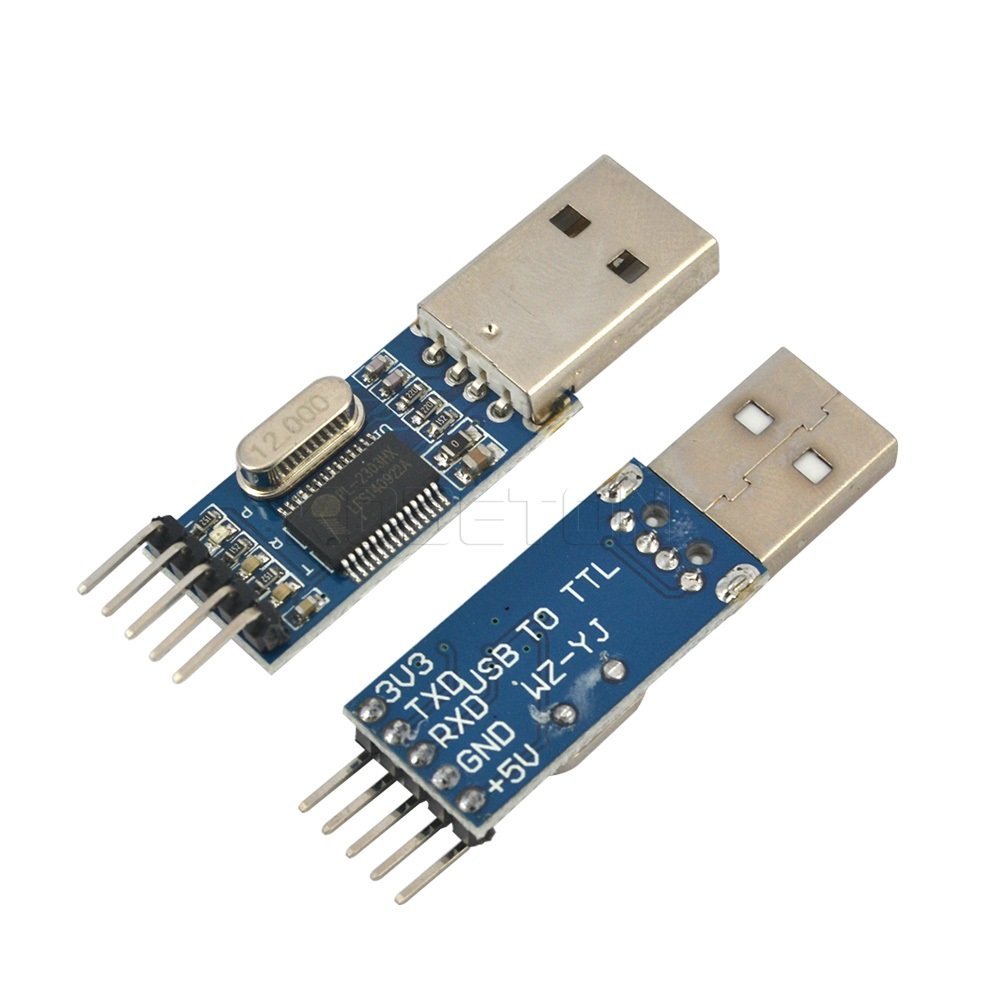
We need a USB to serial converter to connect Raspberry Pi to the PC serially. This is the cheapest among all converters available in Amazon. This is based on PL2302 chip. I'm not sure it's original or Chinese replica. In my case it worked out of the box with Ubuntu-17.10. In case if it throws error-10, try downgrading your PL2303 driver. Because the manufacturer blocked all counterfeit chips in his latest driver. I ordered this one and a set of female-to-female jumper wires. Wait for three days and continue with this article.


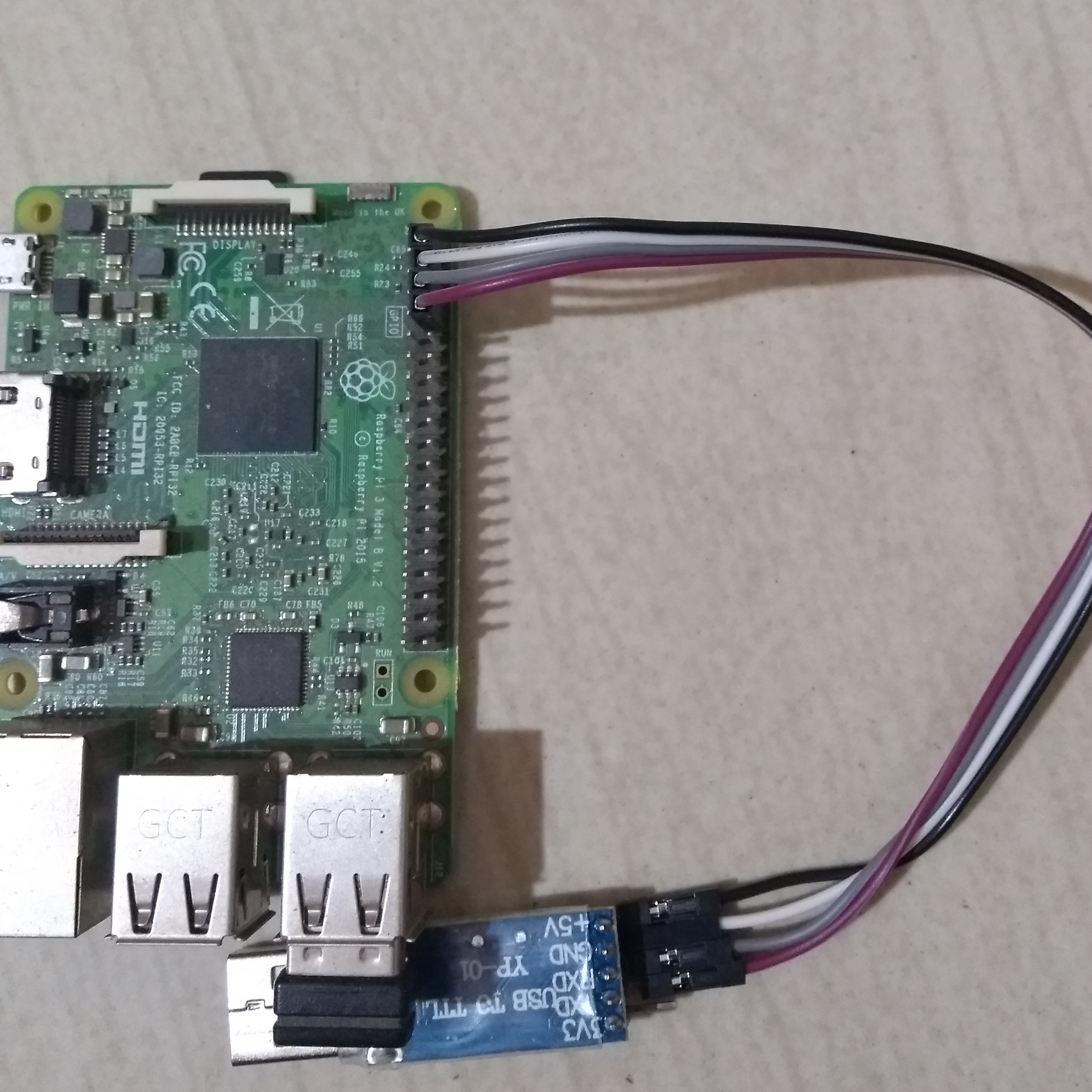
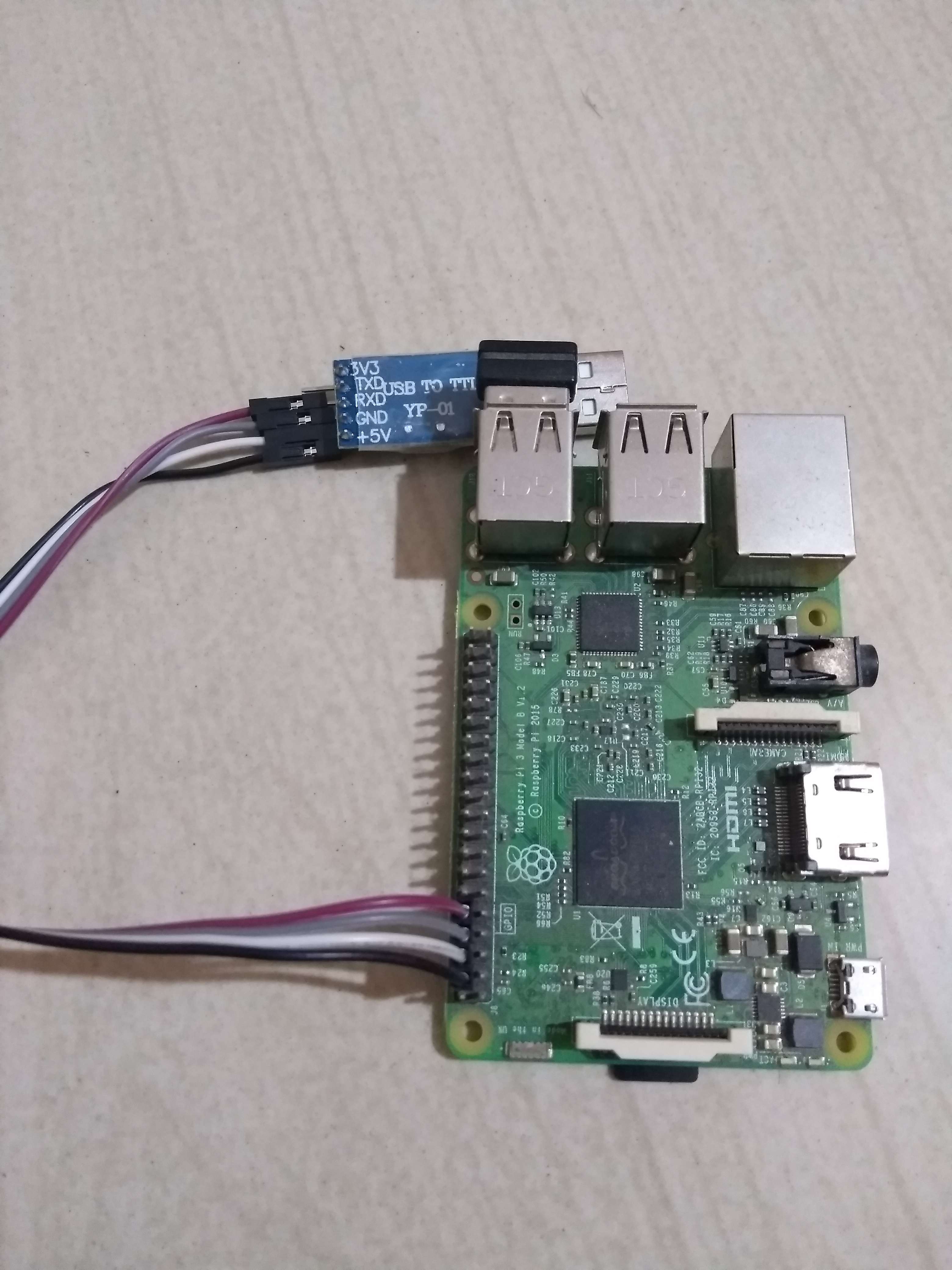
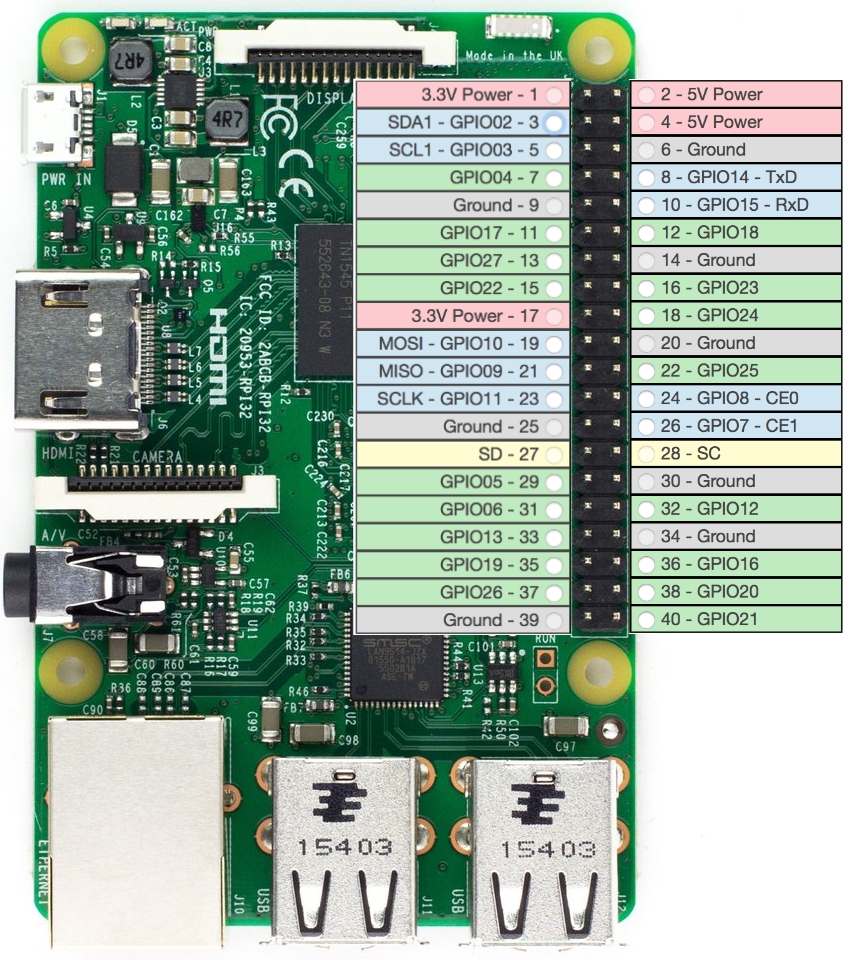
Interfacing is simple - Connect 5V to 5V - Connect TX of converter with RxD of Raspberry's GPIO UART - Connect RX of converter with TxD of Raspberry's GPIO UART - Connect the ground to ground


Below the Raspberry Pi GPIO pin layout Raspberry Pi 3 GPIO pin layout
PL2303's pin layout PL2303 USB to TTL converter pin layout
And the connection goes like this, Raspberry Pi 3 serial connection Raspberry Pi 3 serial connection
As power is supplied via GPIO pin, there is no need of external power supply. I don't know what will happen if both power sources are connected. I'm not dare to try.

Software setup

  • Kernel has to be built with debug support
  • Enable tui support for GDB - if required

For that I have created a custom layer with following tree structure.

meta-kaba-hacks/
├── conf
│   └── layer.conf
├── COPYING.MIT
├── recipes-devtools
│   └── gdb
│       └── gdb-%.bbappend
└── recipes-kernel
    └── linux
        ├── linux-raspberrypi
           ├── debug.cfg
           └── enable_proc_zconfig.cfg
        └── linux-raspberrypi_4.9.bbappend
Enable debug symbols and KGDB/KDB related configs in Linux.
kaba@kaba-Vostro-1550:~/Desktop/yocto/yocto
$ cat meta-kaba-hacks/recipes-kernel/linux/linux-raspberrypi_4.9.bbappend
FILESEXTRAPATHS_prepend := "${THISDIR}/${PN}:"
SRC_URI += "\
            file://debug.cfg \
            file://enable_proc_zconfig.cfg \
            "
kaba@kaba-Vostro-1550:~/Desktop/yocto/yocto
$ cat meta-kaba-hacks/recipes-kernel/linux/linux-raspberrypi/debug.cfg
# CONFIG_STRICT_KERNEL_RWX is not set
CONFIG_DEBUG_INFO=y
CONFIG_FRAME_POINTER=y
CONFIG_KGDB=y
CONFIG_KGDB_SERIAL_CONSOLE=y
CONFIG_KGDB_KDB=y
CONFIG_KDB_KEYBOARD=y
kaba@kaba-Vostro-1550:~/Desktop/yocto/yocto
$ cat meta-kaba-hacks/recipes-kernel/linux/linux-raspberrypi/enable_proc_zconfig.cfg
CONFIG_IKCONFIG=y
CONFIG_IKCONFIG_PROC=y
kaba@kaba-Vostro-1550:~/Desktop/yocto/yocto
$
By default tui options is disabled for GDB in yocto. So I'm overriding it to enable it.
kaba@kaba-Vostro-1550:~/Desktop/yocto/yocto
$ cat meta-kaba-hacks/recipes-devtools/gdb/gdb-%.bbappend
EXTRA_OECONF += " --enable-tui"
kaba@kaba-Vostro-1550:~/Desktop/yocto/yocto
$

Build kernel and populate_sdk. Refer this and this if you need help on working with Yocto. And copy the newly built image to Raspberry Pi.

Enable Serial in Raspberry Pi

By default serial interface is not enabled in yocto built Raspberry Pi distribution. We have to enable it in the config.txt file. Connect the SD-card written with Raspberry Pi image to PC and mount first partition. Append enable_uart=1 to the config.txt file.

kaba@kaba-Vostro-1550:~/Desktop/yocto/build/rpi3
$ mount | grep sdb1
/dev/sdb1 on /media/kaba/raspberrypi type vfat (rw,nosuid,nodev,relatime,uid=1000,gid=1000,fmask=0022,dmask=0022,codepage=437,iocharset=iso8859-1,shortname=mixed,showexec,utf8,flush,errors=remount-ro,uhelper=udisks2)
kaba@kaba-Vostro-1550:~/Desktop/yocto/build/rpi3
$ tail /media/kaba/raspberrypi/config.txt
#dtparam=pwr_led_gpio=35
# Enable VC4 Graphics
dtoverlay=vc4-fkms-v3d,cma-256
# have a properly sized image
disable_overscan=1
# Enable audio (loads snd_bcm2835)
dtparam=audio=on
# Load correct Device Tree for Aarch64
device_tree=bcm2710-rpi-3-b.dtb
enable_uart=1
kaba@kaba-Vostro-1550:~/Desktop/yocto/build/rpi3
$
In the host machine open serial console using screen. And connect the USB to ttl converter with PC. You should see the logs of Raspberry Pi booting.
$ sudo screen /det/ttyUSB0 115200

Debug after boot complete

Configure KDBoC module to use ttyS0 and enter KDB mode using sysrq-trigger. In KDB console, enter kgdb to make kernel listen to remote GDB debugger.

root@raspberrypi3-64:~# echo ttyS0 > /sys/module/kgdboc/parameters/kgdboc
[  219.105202] KGDB: Registered I/O driver kgdboc
root@raspberrypi3-64:~# echo g > /proc/sysrq-trigger
[  255.963036] sysrq: SysRq : DEBUG

Entering kdb (current=0xfffffff2f7f60000, pid 396) on processor 3 due to Keyboard Entry
[3]kdb> kgdb
Entering please attach debugger or use $D#44+ or $3#33
Raspberry Pi will be waiting for GDB client debugger connect serially.

Debug during boot

If you want to debug something during boot, you have to connect GDB at very early stage of booting. Linux provides a command line argument option to achieve this. Configure kgdboc and kgdbwait in kernel bootargs. So kernel will wait after minimal initialization of hardware.

root@raspberrypi3-64:~# cat /boot/cmdline.txt
dwc_otg.lpm_enable=0 console=serial0,115200 kgdboc=ttyS0,115200 kgdbwait root=/dev/mmcblk0p2 rootfstype=ext4 rootwait
root@raspberrypi3-64:~# reboot
WARNING: As mentioned [here](https://github.com/raspberrypi/linux/issues/2245), it is a known issue that Raspberry Pi 3 doesn't boot with `kgdboc` set. So this will not work as of now. Let me find a work-around and update that in a future post.

GDB connect

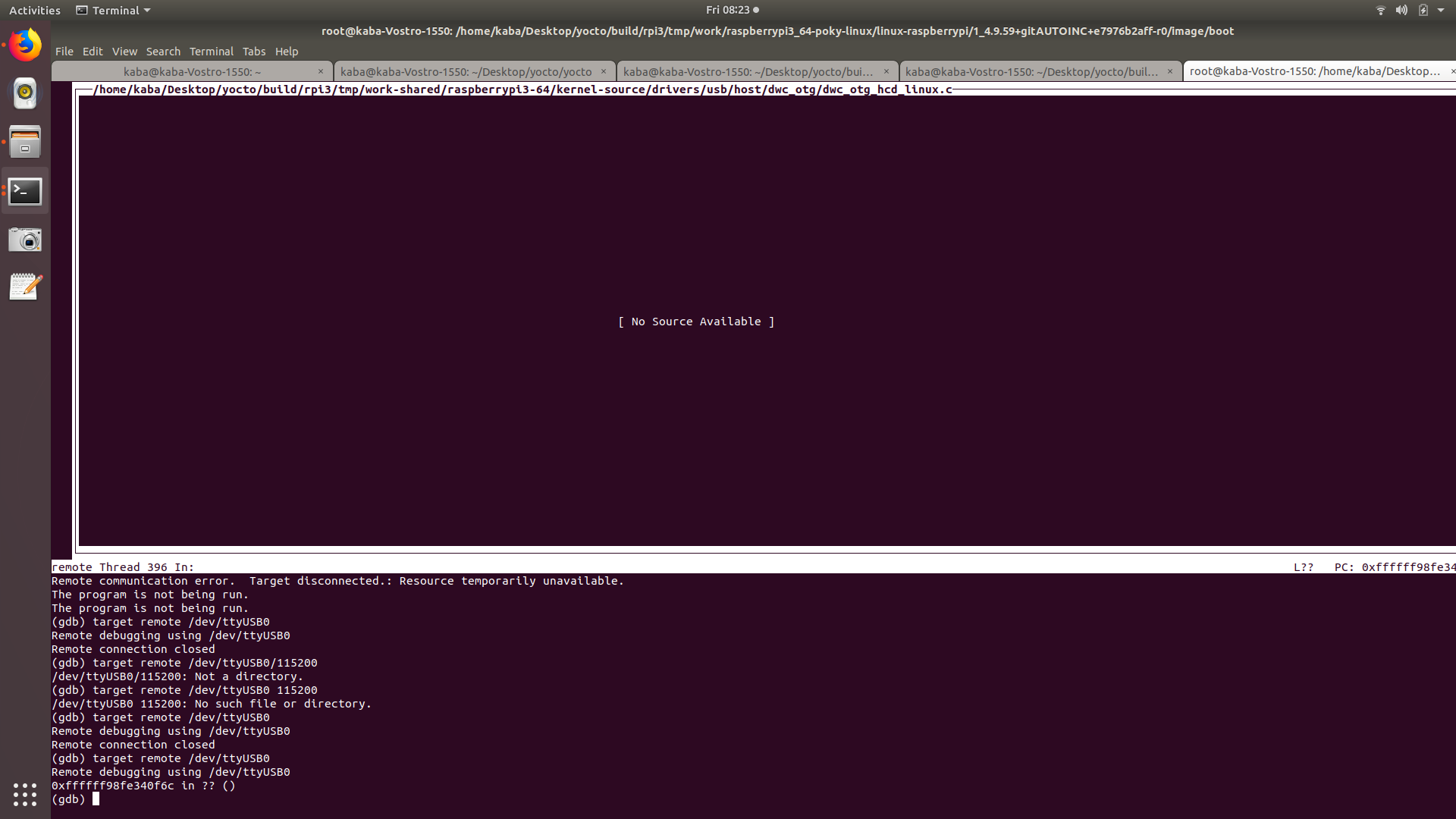
When Pi started waiting for GDB to connect, run the cross-GDB from host. You have to run this as a root.

root@kaba-Vostro-1550:/home/kaba/Desktop/yocto/build/rpi3/tmp/work/raspberrypi3_64-poky-linux/linux-raspberrypi/1_4.9.59+gitAUTOINC+e7976b2aff-r0/image/boot# /home/kaba/Desktop/yocto/build/rpi3/tmp/work/x86_64-nativesdk-pokysdk-linux/gdb-cross-canadian-aarch64/8.0-r0/image/opt/poky/2.4.2/sysroots/x86_64-pokysdk-linux/usr/bin/aarch64-poky-linux/aarch64-poky-linux-gdb -tui ./vmlinux-4.9.59
Once GDB is connected to the board, it will look like this. Raspberry Pi GDB session

References

  • [https://kaiwantech.wordpress.com/2013/07/04/a-kdb-kgdb-session-on-the-popular-raspberry-pi-embedded-linux-board/]
  • [https://github.com/FooDeas/raspberrypi-ua-netinst/issues/122]
  • [https://www.raspberrypi.org/forums/viewtopic.php?t=19186]

KGDBoE on RaspberryPi - building out of the kernel tree module with yocto

WARNING: KGDBoE cannot be used in Raspberry Pi due to lack of polling support in its network drivers. This post will be useful in future if polling is added. Also this post can be used as a reference for building kernel module that is out of kernel tree.

On host

Building module in Raspberry Pi itself will take more time. Also it requires multiple development tools to be added to final image which will drastically increase the image size. To cross-compile we need SDK for Raspberry Pi.

kaba@kaba-Vostro-1550:~/Desktop/yocto/yocto
$ source poky/oe-init-build-env ../build/rpi3/

### Shell environment set up for builds. ###

You can now run 'bitbake <target>'

Common targets are:
    core-image-minimal
    core-image-sato
    meta-toolchain
    meta-ide-support

You can also run generated qemu images with a command like 'runqemu qemux86'
kaba@kaba-Vostro-1550:~/Desktop/yocto/build/rpi3
$
kaba@kaba-Vostro-1550:~/Desktop/yocto/build/rpi3
$ bitbake core-image-base -c populate_sdk
WARNING: Host distribution "ubuntu-17.10" has not been validated with this version of the build system; you may possibly experience unexpected failures. It is recommended that you use a tested distribution.
Loading cache: 100% |#####################################################################################################| Time: 0:00:00
Loaded 2783 entries from dependency cache.
NOTE: Resolving any missing task queue dependencies

Build Configuration:
BB_VERSION           = "1.36.0"
BUILD_SYS            = "x86_64-linux"
NATIVELSBSTRING      = "universal"
TARGET_SYS           = "aarch64-poky-linux"
MACHINE              = "raspberrypi3-64"
DISTRO               = "poky"
DISTRO_VERSION       = "2.4.2"
TUNE_FEATURES        = "aarch64"
TARGET_FPU           = ""
meta                 
meta-poky            
meta-yocto-bsp       = "rocko:fdeecc901196bbccd7c5b1ea4268a2cf56764a62"
meta-oe              
meta-multimedia      
meta-networking      
meta-python          = "rocko:a65c1acb1822966c3553de9fc98d8bb6be705c4e"
meta-raspberrypi     = "rocko:20358ec57a8744b0a02da77b283620fb718b0ee0"

Initialising tasks: 100% |################################################################################################| Time: 0:00:11
NOTE: Executing SetScene Tasks
NOTE: Executing RunQueue Tasks
NOTE: Tasks Summary: Attempted 3589 tasks of which 3589 didn't need to be rerun and all succeeded.

Summary: There was 1 WARNING message shown.
kaba@kaba-Vostro-1550:~/Desktop/yocto/build/rpi3
Once done, the script to install SDK will be present in ./tmp/deploy/sdk/. Run the script poky-glibc-x86_64-core-image-base-aarch64-toolchain-2.4.2.sh. This will install the SDK in /opt/ directory by default.
kaba@kaba-Vostro-1550:~/Desktop/yocto/build/rpi3
$ ./tmp/deploy/sdk/poky-glibc-x86_64-core-image-base-aarch64-toolchain-2.4.2.sh 
Poky (Yocto Project Reference Distro) SDK installer version 2.4.2
=================================================================
Enter target directory for SDK (default: /opt/poky/2.4.2): 
The directory "/opt/poky/2.4.2" already contains a SDK for this architecture.
If you continue, existing files will be overwritten! Proceed[y/N]? N
Installation aborted!
kaba@kaba-Vostro-1550:~/Desktop/yocto/build/rpi3
$ ls /opt/poky/2.4.2/
environment-setup-aarch64-poky-linux  sysroots/                             
site-config-aarch64-poky-linux        version-aarch64-poky-linux            
kaba@kaba-Vostro-1550:~/Desktop/yocto/build/rpi3
$ 
I didn't overwrite files as I have installed it already. The script environment-setup-aarch64-poky-linux is the one that will setup the cross-build environment for us.

Clone the KGDBoE source from Github. Setup cross-build environment and build the module.

$ git clone https://github.com/sysprogs/kgdboe.git
Cloning into 'kgdboe'...
remote: Counting objects: 172, done.
remote: Total 172 (delta 0), reused 0 (delta 0), pack-reused 171
Receiving objects: 100% (172/172), 51.95 KiB | 81.00 KiB/s, done.
Resolving deltas: 100% (114/114), done.
kaba@kaba-Vostro-1550:~/Desktop/yocto/build/rpi3/cross-compile
$
kaba@kaba-Vostro-1550:~/Desktop/yocto/build/rpi3/cross-compile
$ cd kgdboe
kaba@kaba-Vostro-1550:~/Desktop/yocto/build/rpi3/cross-compile/kgdboe
$ source /opt/poky/2.4.2/environment-setup-aarch64-poky-linux 
kaba@kaba-Vostro-1550:~/Desktop/yocto/build/rpi3/cross-compile/kgdboe
$ make -C /home/kaba/Desktop/yocto/build/rpi3/tmp/work/raspberrypi3_64-poky-linux/linux-raspberrypi/1_4.9.59+gitAUTOINC+e7976b2aff-r0/linux-raspberrypi3_64-standard-build M=$(pwd)
make: Entering directory '/home/kaba/Desktop/yocto/build/rpi3/tmp/work/raspberrypi3_64-poky-linux/linux-raspberrypi/1_4.9.59+gitAUTOINC+e7976b2aff-r0/linux-raspberrypi3_64-standard-build'
  LD      /home/kaba/Desktop/yocto/build/rpi3/cross-compile/kgdboe/built-in.o
  CC [M]  /home/kaba/Desktop/yocto/build/rpi3/cross-compile/kgdboe/irqsync.o
  CC [M]  /home/kaba/Desktop/yocto/build/rpi3/cross-compile/kgdboe/kgdboe_main.o
  CC [M]  /home/kaba/Desktop/yocto/build/rpi3/cross-compile/kgdboe/kgdboe_io.o
/home/kaba/Desktop/yocto/build/rpi3/cross-compile/kgdboe/kgdboe_io.c: In function 'force_single_cpu_mode':
/home/kaba/Desktop/yocto/build/rpi3/cross-compile/kgdboe/kgdboe_io.c:119:3: error: implicit declaration of function 'cpu_down'; did you mean 'cpu_die'? [-Werror=implicit-function-declaration]
   cpu_down(i);
   ^~~~~~~~
   cpu_die
cc1: some warnings being treated as errors
/home/kaba/Desktop/yocto/build/rpi3/tmp/work-shared/raspberrypi3-64/kernel-source/scripts/Makefile.build:293: recipe for target '/home/kaba/Desktop/yocto/build/rpi3/cross-compile/kgdboe/kgdboe_io.o' failed
make[3]: *** [/home/kaba/Desktop/yocto/build/rpi3/cross-compile/kgdboe/kgdboe_io.o] Error 1
/home/kaba/Desktop/yocto/build/rpi3/tmp/work-shared/raspberrypi3-64/kernel-source/Makefile:1493: recipe for target '_module_/home/kaba/Desktop/yocto/build/rpi3/cross-compile/kgdboe' failed
make[2]: *** [_module_/home/kaba/Desktop/yocto/build/rpi3/cross-compile/kgdboe] Error 2
Makefile:150: recipe for target 'sub-make' failed
make[1]: *** [sub-make] Error 2
Makefile:24: recipe for target '__sub-make' failed
make: *** [__sub-make] Error 2
make: Leaving directory '/home/kaba/Desktop/yocto/build/rpi3/tmp/work/raspberrypi3_64-poky-linux/linux-raspberrypi/1_4.9.59+gitAUTOINC+e7976b2aff-r0/linux-raspberrypi3_64-standard-build'
kaba@kaba-Vostro-1550:~/Desktop/yocto/build/rpi3/cross-compile/kgdboe
$
cpu_down function is not available in ARM platform. It is used to shutdown all but one core when debugging, because debugging with single CPU is desirable unless e debug SMP related issues. I couldn't find equivalent ARM function. So let's comment out this call and disable CPUs during boot using bootargs.
kaba@kaba-Vostro-1550:~/Desktop/yocto/build/rpi3/cross-compile/kgdboe
$ git diff
diff --git a/kgdboe_io.c b/kgdboe_io.c
index 1d02360..0d32c36 100644
--- a/kgdboe_io.c
+++ b/kgdboe_io.c
@@ -115,8 +115,8 @@ void force_single_cpu_mode(void)
        printk(KERN_INFO "kgdboe: single-core mode enabled. Shutting down all cores except #0. This is slower, but safer.\n");
        printk(KERN_INFO "kgdboe: you can try using multi-core mode by specifying the following argument:\n");
        printk(KERN_INFO "\tinsmod kgdboe.ko force_single_core = 0\n");
-       for (int i = 1; i < nr_cpu_ids; i++)
-               cpu_down(i);
+       /*for (int i = 1; i < nr_cpu_ids; i++)*/
+               /*cpu_down(i);*/
 }
kaba@kaba-Vostro-1550:~/Desktop/yocto/build/rpi3/cross-compile/kgdboe
$
This time the build gave following linker error.
aarch64-poky-linux-ld: unrecognized option '-Wl,-O1'
This is because the LDFLAGS environment variable. Kernel module Makefile requires LDFLAGS to be set as only the options without -Wl. So it appends whatever there in LDFLAGS with -Wl. As LDFLAGS has another -Wl, we are getting unrecognized option error. So remove all -Wls from LDFLAGS.
$ echo $LDFLAGS 
-Wl,-O1 -Wl,--hash-style=gnu -Wl,--as-needed
$ export LDFLAGS="-O1 --hash-style=gnu --as-needed"
$ echo $LDFLAGS 
-O1 --hash-style=gnu --as-needed
And build now.
kaba@kaba-Vostro-1550:~/Desktop/yocto/build/rpi3/cross-compile/kgdboe
$ make -C /home/kaba/Desktop/yocto/build/rpi3/tmp/work/raspberrypi3_64-poky-linux/linux-raspberrypi/1_4.9.59+gitAUTOINC+e7976b2aff-r0/linux-raspberrypi3_64-standard-build M=$(pwd)
make: Entering directory '/home/kaba/Desktop/yocto/build/rpi3/tmp/work/raspberrypi3_64-poky-linux/linux-raspberrypi/1_4.9.59+gitAUTOINC+e7976b2aff-r0/linux-raspberrypi3_64-standard-build'
  LD [M]  /home/kaba/Desktop/yocto/build/rpi3/cross-compile/kgdboe/kgdboe.o
  Building modules, stage 2.
  MODPOST 1 modules
  CC      /home/kaba/Desktop/yocto/build/rpi3/cross-compile/kgdboe/kgdboe.mod.o
  LD [M]  /home/kaba/Desktop/yocto/build/rpi3/cross-compile/kgdboe/kgdboe.ko
make: Leaving directory '/home/kaba/Desktop/yocto/build/rpi3/tmp/work/raspberrypi3_64-poky-linux/linux-raspberrypi/1_4.9.59+gitAUTOINC+e7976b2aff-r0/linux-raspberrypi3_64-standard-build'
kaba@kaba-Vostro-1550:~/Desktop/yocto/build/rpi3/cross-compile/kgdboe
$ ls kgdboe.ko
-rw-r--r-- 1 kaba kaba 2.1M May  5 16:11 kgdboe.ko
kaba@kaba-Vostro-1550:~/Desktop/yocto/build/rpi3/cross-compile/kgdboe
$
Now scp the module kgdboe.ko to Raspberry Pi.
kaba@kaba-Vostro-1550:~/Desktop/yocto/build/rpi3/cross-compile/kgdboe
$ scp kgdboe.ko root@192.168.0.101

On Target

Add maxcpus=1 option to Raspberry Pi's kernel command line to disable all but one core. The bootargs can be found in the file cmdline.txt in first partition of the SD card.

$ ssh root@192.168.0.101
Last login: Sat May  5 07:59:44 2018 from 192.168.0.108
root@raspberrypi3-64:~# ls
kgdboe.ko
root@raspberrypi3-64:~# mount /dev/mmcblk0p1 /boot
root@raspberrypi3-64:~# cat /boot/cmdline.txt 
dwc_otg.lpm_enable=0 console=serial0,115200 root=/dev/mmcblk0p2 rootfstype=ext4 rootwait maxcpus=1
root@raspberrypi3-64:~#
Reboot the Pi and try installing the module.
root@raspberrypi3-64:~# cat /proc/cmdline 
8250.nr_uarts=0 cma=256M bcm2708_fb.fbwidth=1920 bcm2708_fb.fbheight=1080 bcm2708_fb.fbswap=1 vc_mem.mem_base=0x3ec00000 vc_mem.mem_size=0x40000000  dwc_otg.lpm_enable=0 console=ttyS0,115200 root=/dev/mmcblk0p2 rootfstype=ext4 rootwait maxcpus=1
root@raspberrypi3-64:~# insmod kgdboe.ko 
insmod: ERROR: could not insert module kgdboe.ko: Invalid parameters
root@raspberrypi3-64:~# dmesg | tail -5
[ 1211.816691] kgdboe: Failed to setup netpoll for eth0, code -524
[ 8814.348313] netpoll: kgdboe: local IP 1.1.1.101
[ 8814.348344] netpoll: kgdboe: eth0 doesn't support polling, aborting
[ 8814.348360] kgdboe: Failed to setup netpoll for eth0, code -524
root@raspberrypi3-64:~#
Due to lack of polling support, Kernel debugging over Ethernet is not available for as of now. If you are reading this, you are part of the clan having hope.

References

  • [http://sysprogs.com/VisualKernel/kgdboe/tutorial/]
  • [https://github.com/raspberrypi/linux/blob/rpi-4.14.y/arch/arm64/Kconfig]
  • [https://sysprogs.com/w/forums/topic/two-problems-1-linuxkerneldebughelper-seg-fault-and-2-kgdboe-build-fails/]
  • [https://stackoverflow.com/questions/25407320/what-is-the-signification-of-ldflags]
  • [https://github.com/raspberrypi/linux/issues/1877]

Raspberry Pi dishes from Yocto cuisine

Recently I got some board bring-up work where I come across Yocto project. To complete that project, I had to understand a little more than the basics of Yocto. So I had some hands on like Yocto Project Quick Start and Yocto Project Linux Kernel Development Manual. Seems Yocto is so powerful thus I thought of starting to use it for my Raspberry Pi hacking. As expected there are already people tried doing so and there are some good blogs about what they have accomplished. But to my surprise, there is already a meta layer for Raspberry Pi 3. It makes the work even simpler.

I created a directory in Desktop as base for the development. Inside it I created build, downloads, sstate, tmp and yocto layers directories.

$ ls
build  downloads  sstate  sstate-cache  tmp  yocto
With reference to the meta-raspberry quick start page, I have cloned poky, meta-openembedded and meta-raspberry inside the yocto directory. And checkout to specific branches.
$ cd yocto
$ git clone git://git.yoctoproject.org/poky.git
$ cd poky
$ git checkout origin/master
$ $ git rev-parse HEAD
da3625c52e1ab8985fba4fc3d133edf92142f182
$
$ cd ..
$ git clone git://git.openembedded.org/meta-openembedded
$ cd meta-openembedded
$ $ git rev-parse HEAD
271ce3576be25d8012af15961f827aa2235e6434
$
$ cd ..
$ git clone git://git.yoctoproject.org/meta-raspberrypi
$ cd meta-raspberry
$ git checkout master
$ git rev-parse HEAD
693f36dded2f29fd77720f7b2e7c88ea76554466
You can find all the available layers here

Only the above branches and commits worked for me. With rocko branch had pypi.class error

Sourced the oe-init script to setup build environment. And then configured the conf/bblayers.conf file to include meta-layers from meta-openembedded and meta-raspberry layers. The meta-raspberry quick start specifies meta-oe, meta-multimedia, meta-networking and meta-python as dependencies for meta-raspberry. So I'm including all of the into my conf/bblayers.conf file.

$ source yocto/poky/oe-init-build-env build/rpi3/

### Shell environment set up for builds. ###

You can now run 'bitbake <target>'

Common targets are:
    core-image-minimal
    core-image-sato
    meta-toolchain
    meta-ide-support

You can also run generated qemu images with a command like 'runqemu qemux86'
$ pwd
/home/kaba/Desktop/yocto/build/rpi3
$ cat conf/bblayers.conf
# POKY_BBLAYERS_CONF_VERSION is increased each time build/conf/bblayers.conf
# changes incompatibly
POKY_BBLAYERS_CONF_VERSION = "2"

BBPATH = "${TOPDIR}"
BBFILES ?= ""

BBLAYERS ?= " \
  ${TOPDIR}/../../yocto/poky/meta \
  ${TOPDIR}/../../yocto/poky/meta-poky \
  ${TOPDIR}/../../yocto/poky/meta-yocto-bsp \
  ${TOPDIR}/../../yocto/meta-openembedded/meta-oe \
  ${TOPDIR}/../../yocto/meta-openembedded/meta-multimedia \
  ${TOPDIR}/../../yocto/meta-openembedded/meta-networking \
  ${TOPDIR}/../../yocto/meta-openembedded/meta-python \
  ${TOPDIR}/../../yocto/meta-raspberrypi \
  "
$
Then made following changes in conf/local.conf. * Set the MACHINE variable to point raspberry Pi 3 [raspberrypi3-64]. * Set SSTATE_DIR, TMPDIR and DL_DIR to point to sstate, tmp and downloads directories respectively. * I usually run my Pi headless. So I enabled ssh-server-openssh EXTRA_IMAGE_FEATURE. Its up to your choice. * Left the other default options as it was.

$ ls ../../yocto/meta-raspberrypi/conf/machine/
include                 raspberrypi2.conf     raspberrypi-cm3.conf
raspberrypi0.conf       raspberrypi3-64.conf  raspberrypi-cm.conf
raspberrypi0-wifi.conf  raspberrypi3.conf     raspberrypi.conf
$
$ cat conf/local.conf 
MACHINE = "raspberrypi3-64"
DISTRO ?= "poky"
PACKAGE_CLASSES ?= "package_rpm"
EXTRA_IMAGE_FEATURES ?= "debug-tweaks ssh-server-openssh"
USER_CLASSES ?= "buildstats image-mklibs image-prelink"
PATCHRESOLVE = "noop"
CONF_VERSION = "1"

SSTATE_DIR ?= "${TOPDIR}/../../sstate-cache"
TMPDIR ?= "${TOPDIR}/../../tmp"
DL_DIR ?= "${TOPDIR}/../../downloads"

PACKAGECONFIG_append_pn-qemu-native = " sdl"
PACKAGECONFIG_append_pn-nativesdk-qemu = " sdl"
BB_DISKMON_DIRS ??= "\
    STOPTASKS,${TMPDIR},1G,100K \
    STOPTASKS,${DL_DIR},1G,100K \
    STOPTASKS,${SSTATE_DIR},1G,100K \
    STOPTASKS,/tmp,100M,100K \
    ABORT,${TMPDIR},100M,1K \
    ABORT,${DL_DIR},100M,1K \
    ABORT,${SSTATE_DIR},100M,1K \
    ABORT,/tmp,10M,1K"

#SDKMACHINE ?= "i686"
#ASSUME_PROVIDED += "libsdl-native"
$
The variable ${TOPDIR} represents the build directory by default. debug-tweaks will enable root account without password. ssh-server-openssh will install an ssh server using openssh. And the ssh server will be started automatically during boot-up.

Build a basic image - core-image-base

$ bitbake core-image-base
WARNING: Layer openembedded-layer should set LAYERSERIES_COMPAT_openembedded-layer in its conf/layer.conf file to list the core layer names it is compatible with.
WARNING: Layer multimedia-layer should set LAYERSERIES_COMPAT_multimedia-layer in its conf/layer.conf file to list the core layer names it is compatible with.
WARNING: Layer networking-layer should set LAYERSERIES_COMPAT_networking-layer in its conf/layer.conf file to list the core layer names it is compatible with.
WARNING: Layer meta-python should set LAYERSERIES_COMPAT_meta-python in its conf/layer.conf file to list the core layer names it is compatible with.
WARNING: Layer openembedded-layer should set LAYERSERIES_COMPAT_openembedded-layer in its conf/layer.conf file to list the core layer names it is compatible with.
WARNING: Layer multimedia-layer should set LAYERSERIES_COMPAT_multimedia-layer in its conf/layer.conf file to list the core layer names it is compatible with.
WARNING: Layer networking-layer should set LAYERSERIES_COMPAT_networking-layer in its conf/layer.conf file to list the core layer names it is compatible with.
WARNING: Layer meta-python should set LAYERSERIES_COMPAT_meta-python in its conf/layer.conf file to list the core layer names it is compatible with.
WARNING: Host distribution "ubuntu-17.10" has not been validated with this version of the build system; you may possibly experience unexpected failures. It is recommended that you use a tested distribution.
Parsing recipes: 100% |#################################################################################################################################################| Time: 0:03:49
Parsing of 2081 .bb files complete (0 cached, 2081 parsed). 2940 targets, 116 skipped, 0 masked, 0 errors.
NOTE: Resolving any missing task queue dependencies

Build Configuration:
BB_VERSION           = "1.37.0"
BUILD_SYS            = "x86_64-linux"
NATIVELSBSTRING      = "ubuntu-17.10"
TARGET_SYS           = "aarch64-poky-linux"
MACHINE              = "raspberrypi3-64"
DISTRO               = "poky"
DISTRO_VERSION       = "2.5"
TUNE_FEATURES        = "aarch64"
TARGET_FPU           = ""
meta                 
meta-poky            
meta-yocto-bsp       = "HEAD:da3625c52e1ab8985fba4fc3d133edf92142f182"
meta-oe              
meta-multimedia      
meta-networking      
meta-python          = "master:271ce3576be25d8012af15961f827aa2235e6434"
meta-raspberrypi     = "master:693f36dded2f29fd77720f7b2e7c88ea76554466"

NOTE: Fetching uninative binary shim from http://downloads.yoctoproject.org/releases/uninative/1.9/x86_64-nativesdk-libc.tar.bz2;sha256sum=c26622a1f27dbf5b25de986b11584b5c5b2f322d9eb367f705a744f58a5561ec
Initialising tasks: 100% |##############################################################################################################################################| Time: 0:00:04
NOTE: Executing SetScene Tasks
NOTE: Executing RunQueue Tasks
NOTE: Tasks Summary: Attempted 3407 tasks of which 106 didn't need to be rerun and all succeeded.

Summary: There were 9 WARNING messages shown.
kaba@kaba-Vostro-1550:~/Desktop/yocto/build/rpi3
$

Installation and booting

If everything goes well, you can see the final image tmp/deploy/images/raspberrypi3-64/core-image-base-raspberrypi3-64.rpi-sdimg. The path is relative to your build directory - build/rpi3. It is a soft-link to your latest build image. dd it to your sd-card - /dev/sdb in my case - and boot the Raspberry Pi 3 with it.

$ sudo umount /dev/sdb*
$ sudo dd if=tmp/deploy/images/raspberrypi3-64/core-image-base-raspberrypi3-64.rpi-sdimg of=/dev/sdb bs=1M
$ sudo umount /dev/sdb*

WiFi configuration in Raspberry Pi

To access Raspberry Pi over ssh it should be part of network first. So for the first boot, connect a monitor to the board and boot with your sd-card.

Edit wpa_supplicant.conf file to input WiFi access point related information.

root@raspberrypi3-64:~# cat /etc/wpa_supplicant.conf 
ctrl_interface=/var/run/wpa_supplicant
ctrl_interface_group=0
update_config=1

network={
    ssid="Bluetooth"
    psk="**********"
}
root@raspberrypi3-64:~#
Enter your WiFi access point password against psk.

And bring-up interface wlan0 on boot-up

root@raspberrypi3-64:~# cat /etc/init.d/networking
.
.
start)
    .
    .
    ifup wlan0
    .
    .
.
.
Configure sticky IP in your access point for your Raspberry Pi corresponding to its mac. So every time after reboot you can straightaway ssh to Raspberry Pi.

References

  • [https://media.readthedocs.org/pdf/meta-raspberrypi/latest/meta-raspberrypi.pdf]
  • [http://www.jumpnowtek.com/rpi/Raspberry-Pi-Systems-with-Yocto.html]
  • [https://raspinterest.wordpress.com/2016/11/30/yocto-project-on-raspberry-pi-3/]
  • [https://stackoverflow.com/questions/35904769/what-are-the-differences-between-open-embedded-core-and-meta-openembedded]
  • [https://github.com/agherzan/meta-raspberrypi/issues/195]
  • [https://patchwork.openembedded.org/patch/36139/]